Adobe ACA_108V exam dumps : Visual Design using Adobe Photoshop 2025 (v 26.x)

  • Exam Code: ACA_108V
  • Exam Name: Visual Design using Adobe Photoshop 2025 (v 26.x)
  • Updated: Nov 20, 2026     Q & A: 0 Questions and Answers

We are already working hard to make ACA_108V exam material available to our valued customers. If you are interested in ACA_108V exam material, provide us your email and we will notify you.

Adobe ACA_108V Value Pack (Frequently Bought Together)

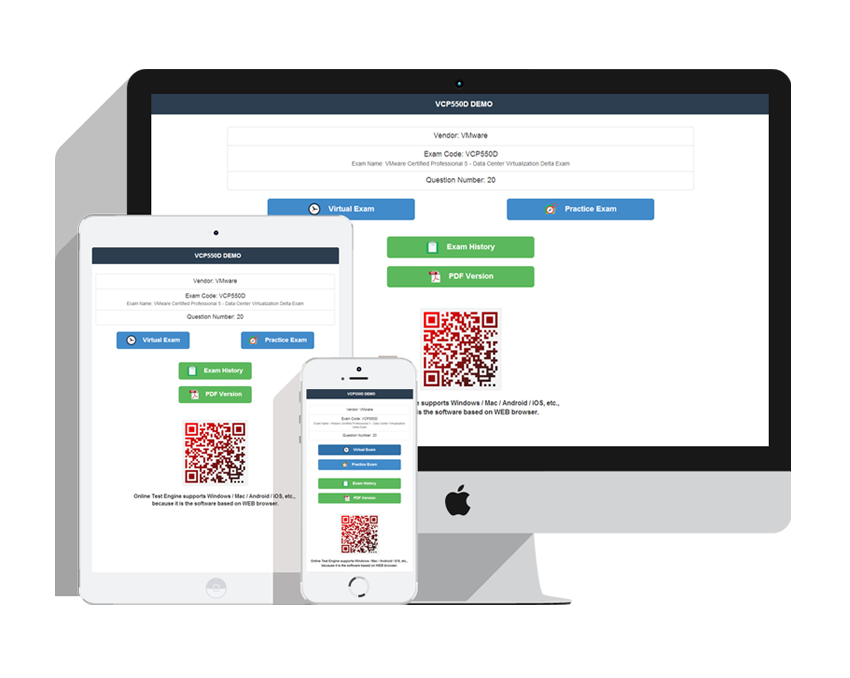
ACA_108V Online Test Engine
  • If you purchase Adobe ACA_108V Value Pack, you will also own the free online test engine.
  • PDF Version + PC Test Engine + Online Test Engine

About Adobe ACA_108V Exam

Nothing to lose is only honest when the policy is written down. PracticeTorrent backs the ACA_108V bank with published refund conditions and a free demo, so your Adobe Visual Design using Adobe Photoshop 2025 (v 26.x) decision is protected on both ends.

Adobe ACA_108V Exam Syllabus Topics:

SectionObjectives
Topic 1: Adding Content to a Document- Add and modify text
  • 1. Adjust paragraph settings, including alignment, indentation, spacing, margins, bullets, numbering, and hyphenation
    • 2. Convert text to graphics by rasterizing type or converting text to Smart Objects
      • 3. Adjust character settings, including font, size, style, color, alignment, kerning, tracking, leading, and scaling
        • 4. Use type tools to add typography
          - Create and edit using raster drawing tools and features
          • 1. Use the Pencil, Brush, Smudge, Sharpen, Blur, and Paint Bucket tools
            • 2. Use generative AI tools, including prompt writing and Sky Replacement
              • 3. Use the Eraser, Background Eraser, Magic Eraser, Remove Background, and History Brush tools
                - Create and edit using vector drawing tools and features
                • 1. Add, delete, and convert anchor points
                  • 2. Use the Pen, Freeform Pen, and Curvature Pen tools
                    • 3. Create shapes using rectangle, rounded rectangle, ellipse, triangle, polygon, line, and custom shape tools
                      Topic 2: Project Setup and Interface- Work with brushes, styles, and patterns
                      • 1. Open, create, import, group, and organize brush, style, and pattern libraries
                        • 2. Create, use, and edit brushes, styles, and patterns
                          - Manage colors, swatches, and gradients
                          • 1. Create and edit gradients, color stops, transparency stops, and gradient groups
                            • 2. Use the Color Picker, Eyedropper, hexadecimal values, and foreground and background colors
                              • 3. Create, import, organize, and export swatches, including Adobe Swatch Exchange files
                                - Create or modify documents using appropriate settings
                                • 1. Create and use document presets
                                  • 2. Configure document dimensions, orientation, artboards, resolution, color mode, bit depth, background, and metadata
                                    - Import assets into a project
                                    • 1. Open, place, embed, link, copy, and paste assets
                                      • 2. Open and process camera raw files
                                        • 3. Manage linked Smart Objects, relinking, editing linked content, and packaging assets
                                          - Navigate and customize the workspace and design aids
                                          • 1. Configure application preferences and workspace settings
                                            • 2. Identify and manage panels, toolbars, menus, document tabs, artboards, and the contextual taskbar
                                              • 3. Use rulers, guides, grids, snapping, and alignment tools
                                                • 4. Navigate documents using zoom, panning, and canvas rotation
                                                  Topic 3: Layers, Masks, and Adjustments- Modify layer visibility using masks
                                                  • 1. Use the Frame tool
                                                    • 2. Create pixel masks using black, white, gray, gradients, and Select and Mask
                                                      • 3. Create vector masks and clipping masks
                                                        • 4. Apply, delete, disable, and link or unlink masks
                                                          • 5. Use Paste Into when working with masked content
                                                            - Use adjustments and adjustment layers
                                                            • 1. Create and apply adjustment layer presets
                                                              • 2. Limit adjustments to selections, layers, or groups
                                                                • 3. Use the Adjustment Brush tool and Smart Filters
                                                                  • 4. Apply adjustments and distinguish adjustments from adjustment layers
                                                                    - Use layers to manage design elements
                                                                    • 1. Identify layer types and adjust opacity, fill opacity, and blending modes
                                                                      • 2. Manage Smart Objects, including editing content, converting to layers, and converting layers to Smart Objects
                                                                        • 3. Create, delete, select, rename, duplicate, hide, lock, group, link, flatten, and merge layers
                                                                          Topic 4: Publishing Digital Media- Save documents and assets
                                                                          • 1. Select image formats based on intended use, bit depth, color space, resolution, pixel dimensions, and transparency requirements
                                                                            • 2. Use Creative Cloud documents and preserve layers when saving
                                                                              • 3. Save documents as copies when appropriate
                                                                                • 4. Save documents using appropriate compatibility options and native file formats
                                                                                  - Export documents and assets
                                                                                  • 1. Export individual layers, artboards, and document elements
                                                                                    • 2. Use Quick Export and Export As with appropriate export options
                                                                                      Topic 5: Modifying Visual Elements- Manipulate images using retouching and repairing tools
                                                                                      • 1. Adjust exposure and saturation using Dodge, Burn, and Sponge tools
                                                                                        • 2. Use destructive tools nondestructively by working on separate layers
                                                                                          • 3. Restore, retouch, and repair images using healing, cloning, Content-Aware, Patch, Remove, and AI-assisted fill tools
                                                                                            - Modify the appearance of design elements using filters, styles, and materials
                                                                                            • 1. Apply materials and adjust their properties and scale
                                                                                              • 2. Apply, modify, copy, and manage layer styles
                                                                                                • 3. Apply filters and distinguish Smart Filters from regular filters
                                                                                                  - Transform digital graphics
                                                                                                  • 1. Transform layers, groups, and selections using rotation, resizing, warping, distortion, skewing, flipping, and perspective
                                                                                                    • 2. Resize images and canvases, control resampling, and perform nondestructive cropping
                                                                                                      • 3. Modify canvas and artboards using Crop, Perspective Crop, and Straighten
                                                                                                        - Make, manage, and manipulate selections
                                                                                                        • 1. Refine selections using feathering, expansion, contraction, inversion, addition, subtraction, and deselection
                                                                                                          • 2. Create selections using Quick Selection, Magic Wand, lasso, marquee, Select Subject, Object Selection, Select Sky, Selection Brush, and Color Range
                                                                                                            • 3. Convert vector paths to selections
                                                                                                              • 4. Save and load selections using channels
                                                                                                                Topic 6: Working in the Design Industry- Evaluate photographic and design principles
                                                                                                                • 1. Apply typography principles, including font selection, kerning, tracking, leading, alignment, and readability
                                                                                                                  • 2. Apply design elements and principles, including line, shape, color, texture, balance, contrast, alignment, hierarchy, composition, and negative space
                                                                                                                    - Determine copyright, permissions, and licensing requirements for using content
                                                                                                                    • 1. Identify legal and ethical considerations for third-party content, intellectual property, attribution, commercial use, and AI-generated content
                                                                                                                      • 2. Determine when permissions and model or location releases are required
                                                                                                                        - Identify terminology and interpret communication relating to the purpose, audience, and audience needs for developing designs
                                                                                                                        • 1. Evaluate design relevance, audience needs, accessibility, and user experience
                                                                                                                          • 2. Identify requirements based on intended design use
                                                                                                                            • 3. Communicate design plans with peers and clients using sketches, specifications, drafts, feedback, style guides, and project briefs
                                                                                                                              • 4. Apply basic project management concepts, including project scope, timelines, file management, and collaboration
                                                                                                                                - Define key terminology related to digital images
                                                                                                                                • 1. Explain image resolution, dimensions, file types, pixels, raster and vector graphics, paths, objects, rasterization, rendering, resizing, and resampling
                                                                                                                                  • 2. Differentiate destructive and nondestructive editing
                                                                                                                                    • 3. Explain color representation, color modes, bit depth, gamut, and histograms

                                                                                                                                      Everything About Our ACA_108V Materials and Policies

                                                                                                                                      Written down, so you have nothing to worry about. If you fail the corresponding exam within 60 days of purchase, send us a scanned copy of your enrollment slip and your official Score Report PDF within two days of the exam date; verified claims receive a full refund within seven days. Exclusions: exams taken within three days of purchase, candidate names that differ from the payer, and free or expired products. Prefer a different direction? Exchange your product for two others of equal value at no charge.

                                                                                                                                      Upon successful payment, our system automatically emails the product to your mailbox — typically within about a minute — with an instant download link on screen. The testing engine is user-friendly and easy to install, so practice starts immediately. If nothing arrives within two hours, check your spam folder and contact our 24/7 Customer Service. Once purchased, you are granted access to all updates for 365 days, delivered automatically on release, with a 50% renewal discount afterward.

                                                                                                                                      According to the latest exam information, the ACA_108V exam contains 30 questions within 50 minutes minutes. The testing engine reproduces that scope and calculates your final practice score — a useful reference for judging real-exam readiness.

                                                                                                                                      At present, the ACA_108V exam requires a passing score of 700 out of 1000, with a registration fee of USD 150 (US OnVUE online exam; test center pricing varies by location and provider). Adobe sets both figures and may revise them, so confirm on the official site before you schedule.

                                                                                                                                      The Adobe Visual Design using Adobe Photoshop 2025 (v 26.x) blueprint covers these core domains:

                                                                                                                                      • Modifying Visual Elements
                                                                                                                                      • Layers, Masks, and Adjustments
                                                                                                                                      • Publishing Digital Media

                                                                                                                                      Further domains complete the official outline; the question bank addresses all of them.

                                                                                                                                      With data, not guesswork. The ACA_108V testing engine is user-friendly and easy to install; upon completion of each practice test, it calculates your final score, giving you a concrete reference for the real exam. Behind the tools, professionals and IT specialists compose the materials, and every answer is expert-verified — aligned with the real exam's format across the Adobe Visual Design using Adobe Photoshop 2025 (v 26.x) objectives. Before buying, try the free demo questions to test your knowledge; after buying, 24/7 Customer Service and Live Support assist with any problem, and you can ask the team for a discount code. That is the remarkable experience we work to provide.

                                                                                                                                      Adobe states the following prerequisites for the Adobe Visual Design using Adobe Photoshop 2025 (v 26.x): No mandatory prerequisite exam is specified. Adobe recommends approximately 150 hours of instruction and hands-on experience with Photoshop before taking the exam..

                                                                                                                                      Check the authoritative wording on the official certification page before booking.

                                                                                                                                      What Clients Say About Us

                                                                                                                                      LEAVE A REPLY

                                                                                                                                      Your email address will not be published. Required fields are marked *

                                                                                                                                      Why Choose Us